How to Convert HEIC to JPG on Windows, Mac, Linux, iPhone & Android
What is HEIC and Why Does My iPhone Use It?
HEIC (High Efficiency Image Container) is Apple's default photo format since iOS 11, introduced in 2017. It uses advanced HEVC (H.265) compression to reduce file sizes by 40-50% compared to JPG while maintaining the same image quality. This means you can store twice as many photos on your iPhone without sacrificing quality.
You might also encounter .heif files. HEIF (High Efficiency Image Format) is the underlying container format, and .heic is simply the most common file extension used by Apple. The conversion methods below work for both.
When HEIC Becomes a Problem (and Why You Need JPG)
While HEIC is technically superior, it has a major drawback: compatibility. Here's where you'll run into issues:
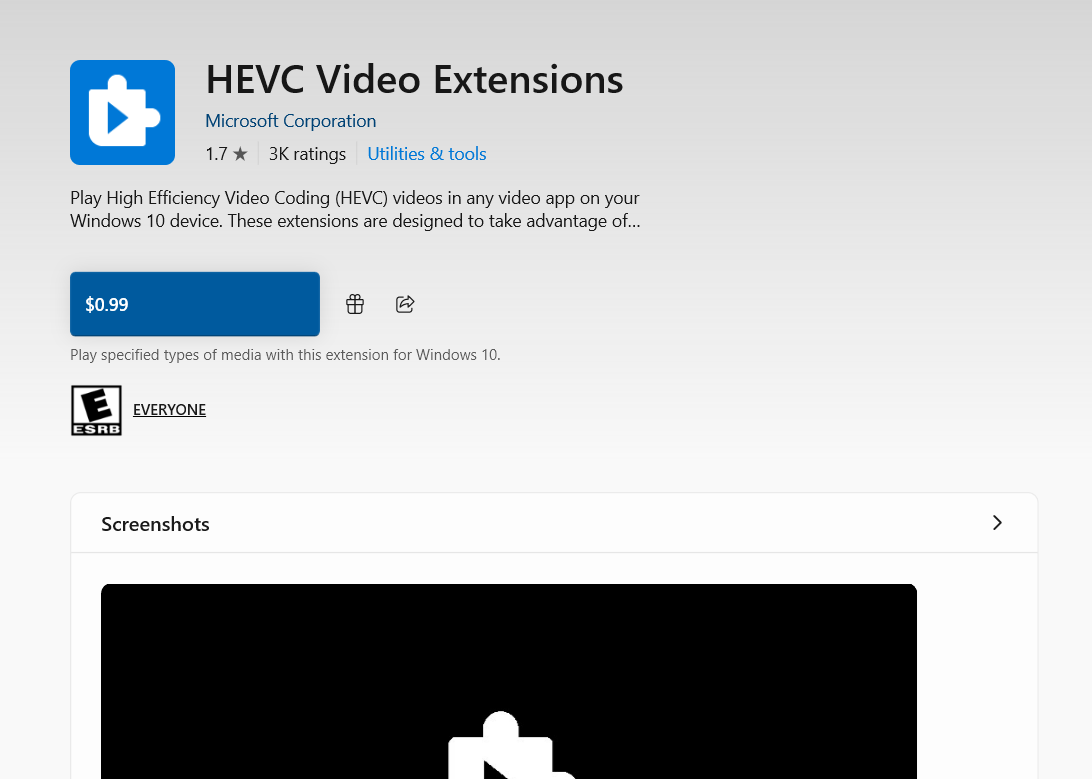
- Windows 10/11: Requires the HEVC Video Extensions ($0.99 from Microsoft Store) to view HEIC files
- Web browsers: Chrome, Firefox, and Edge don't natively display HEIC images
- Website uploads: Most websites don't accept HEIC format (WordPress, Shopify, government portals, exam systems)
- Email: Most email clients can't preview HEIC attachments
- Professional workflows: Real estate MLS systems, advertising agencies, and print shops typically reject HEIC
Use PixKeep (Recommended) — Works on Any Device, No Uploads
The fastest way to convert HEIC to JPG is using an online converter like our free HEIC to JPG tool. Here's why it's the best option:
- No software installation required
- Works on any device with a browser
- Batch processing (convert multiple files at once)
- 100% private - files never leave your device
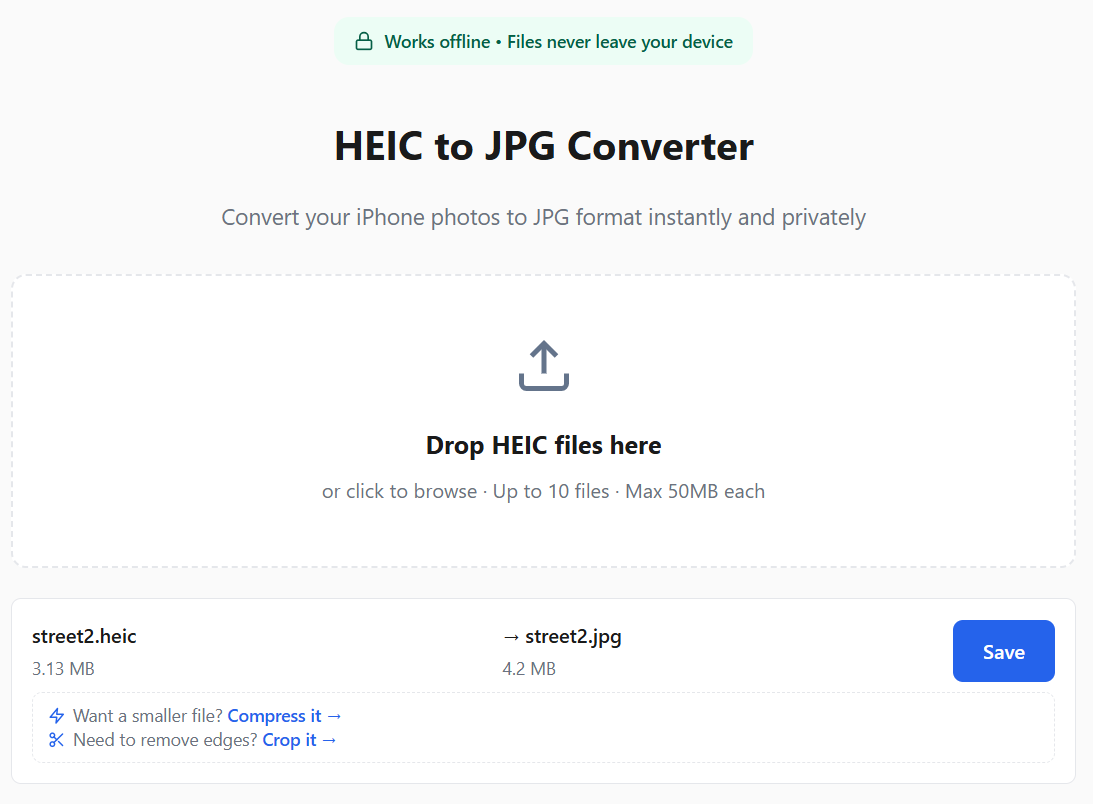
How to use it:
- Go to the HEIC to JPG converter
- Drag and drop your HEIC files (or click to browse)
- Wait for automatic conversion
- Save your JPG files
How to Convert HEIC to JPG on Windows
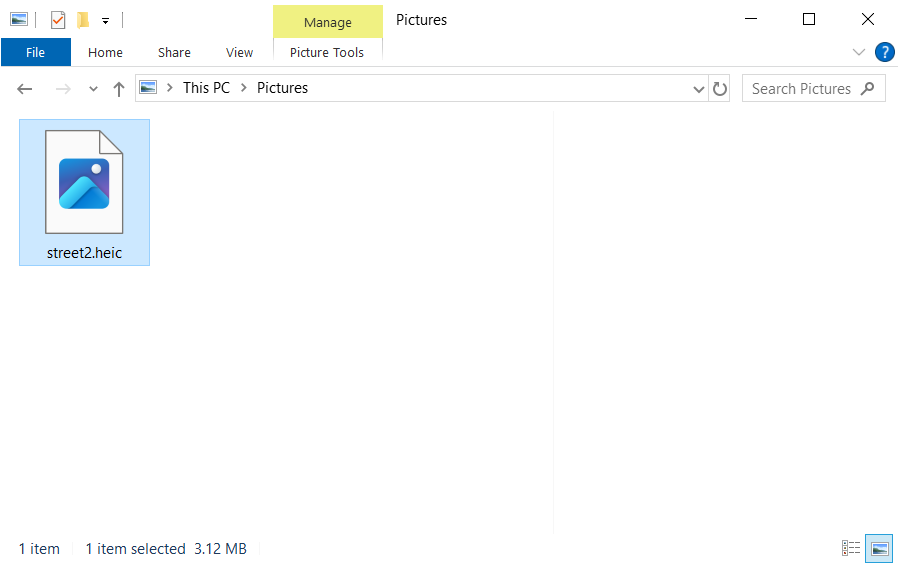
Windows doesn't natively support HEIC, but you have three options:
PixKeep Online — No Install, Works Instantly
Same steps as described above.
HEVC Video Extensions (Official)
The built-in Photos app can open HEIC files once you install the HEVC Video Extensions from the Microsoft Store ($0.99).
After installation:
- Open your HEIC file in the Photos app
- Click ⋯ → Save as and choose JPG
Tip: There's also a free version called "HEVC Video Extensions from Device Manufacturer" — install it directly from this Microsoft Store page. Note: This free version is not available on all computers — some users see "This product is not available in your market." If your device isn't eligible, the $0.99 version is the only official option.
CopyTrans HEIC (Free)
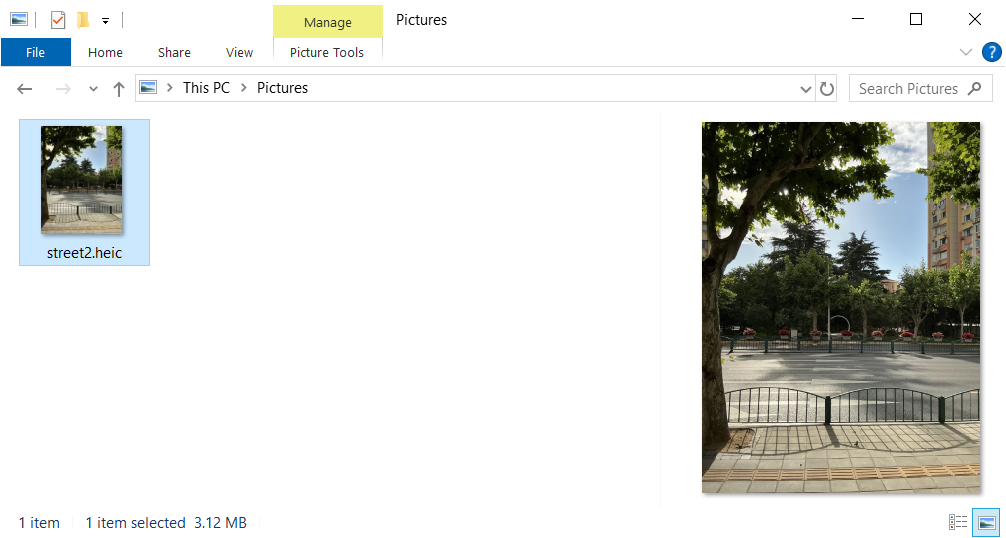
Download and install CopyTrans HEIC for Windows (free for personal use). After installation, restart your computer. When you open File Explorer again, you'll see thumbnail previews for HEIC files:
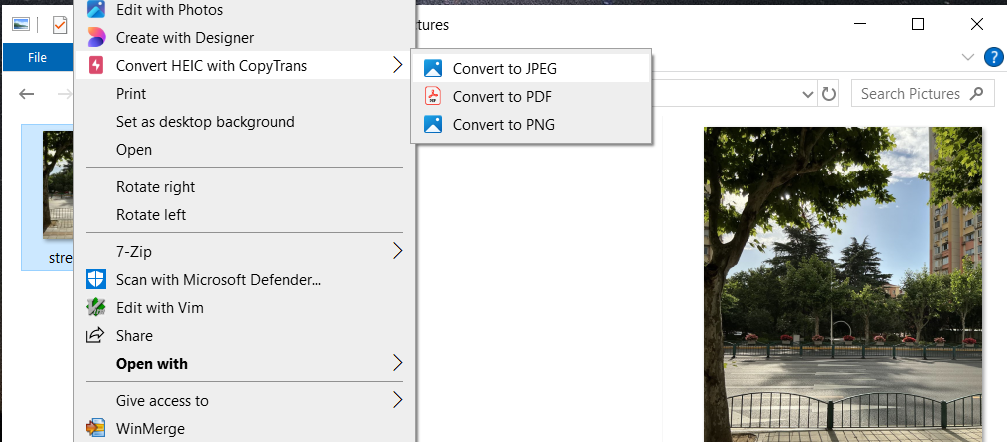
To convert HEIC to JPG with CopyTrans:
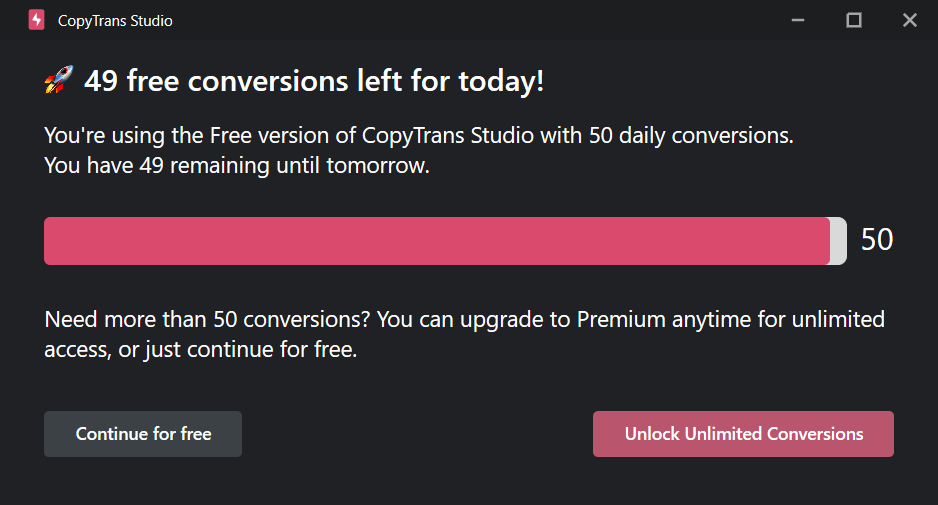
- Right-click any HEIC file → Convert HEIC with CopyTrans → Convert to JPEG
- Works in bulk: select multiple HEIC files, right-click, convert all at once
How to Convert HEIC to JPG on Mac
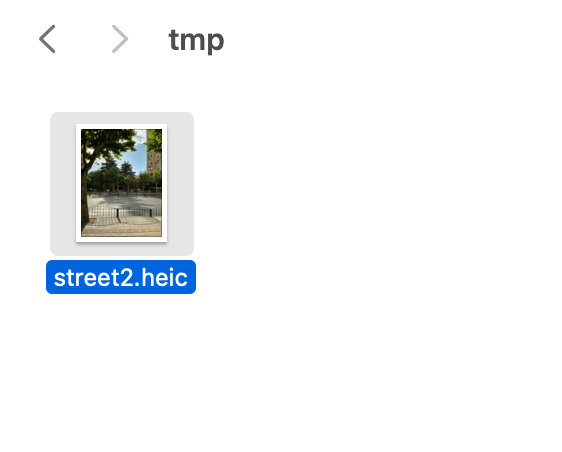
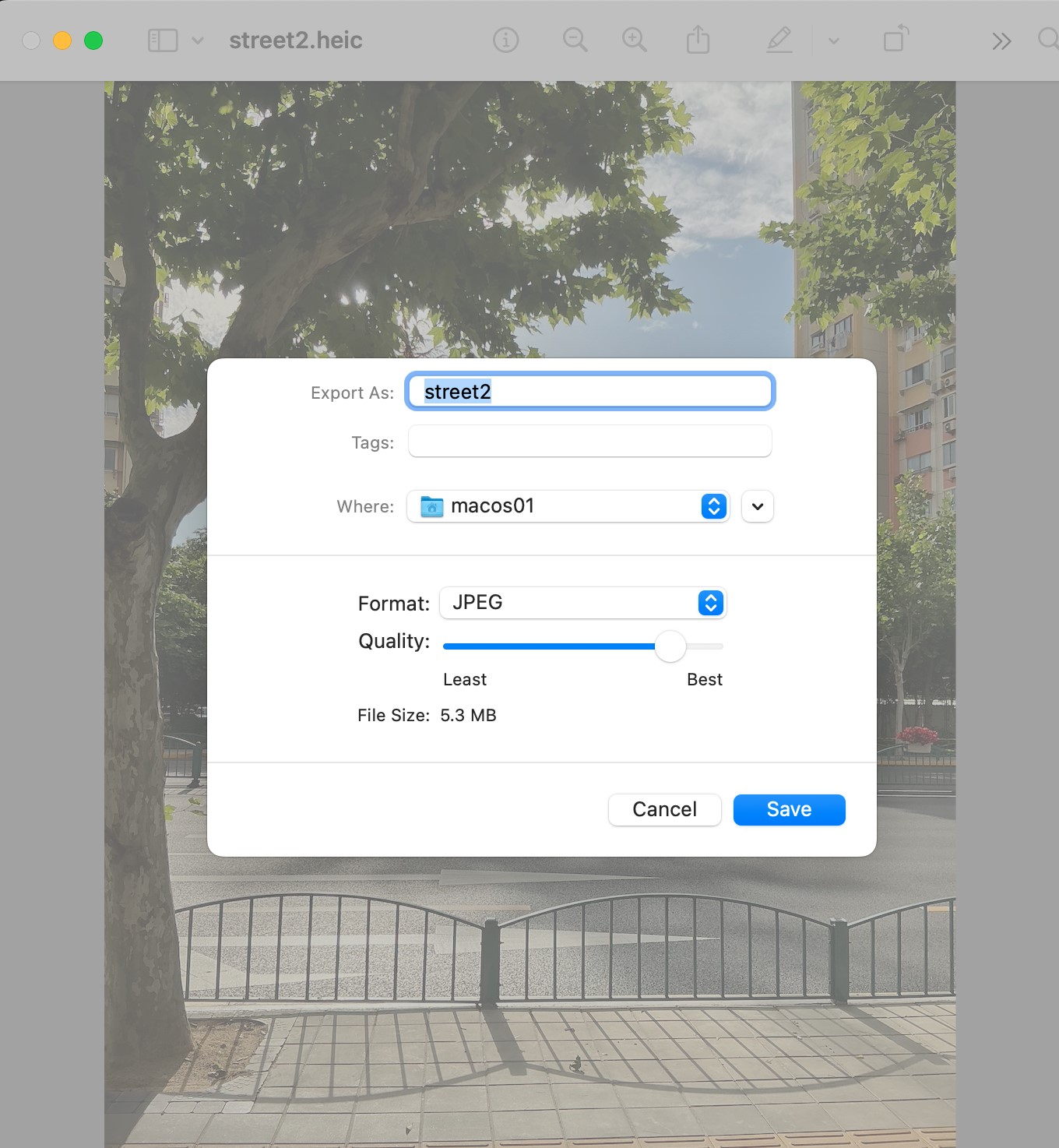
macOS has native HEIC support. Finder shows thumbnail previews and the Preview app opens HEIC files without any extra software.
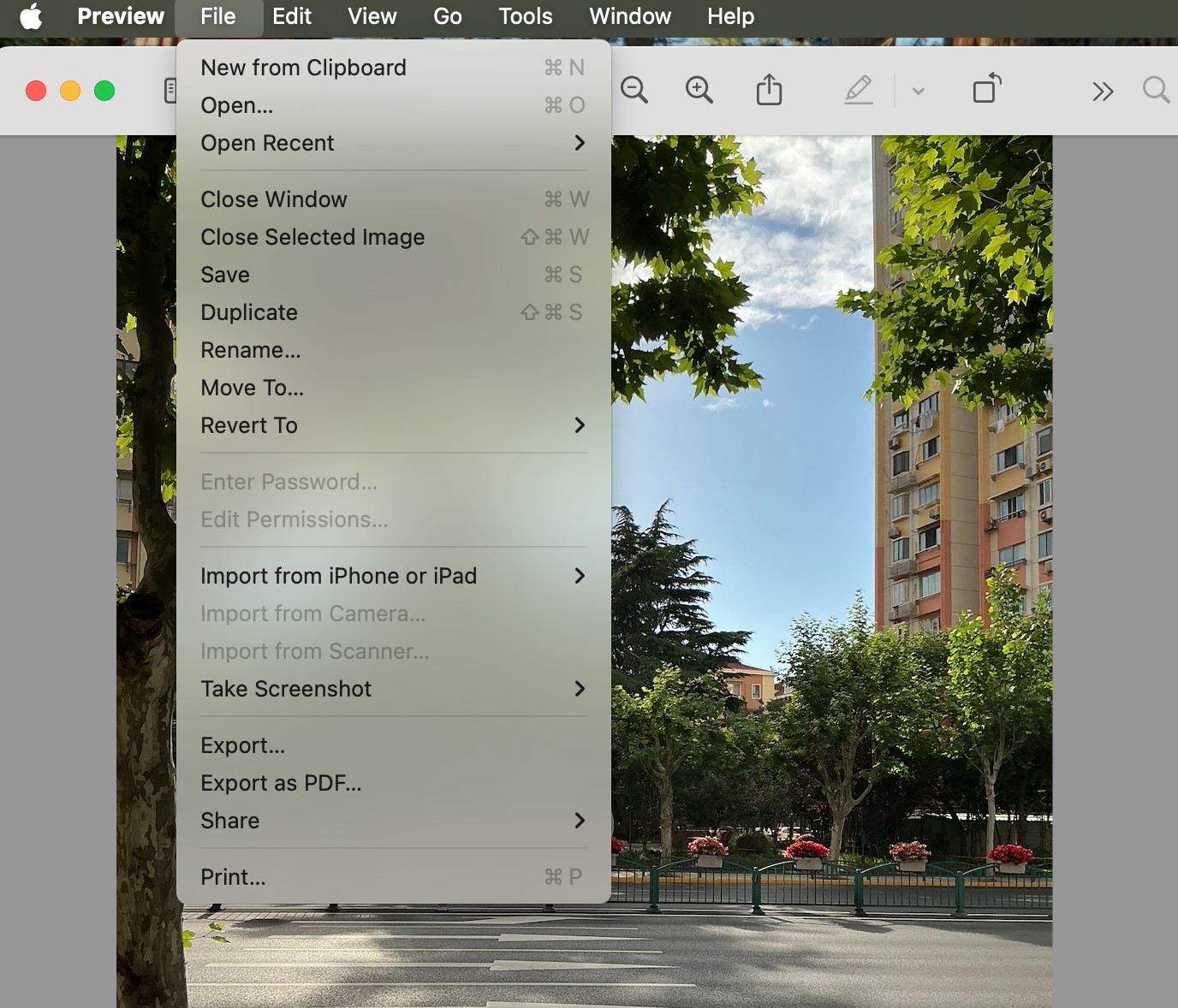
To convert a HEIC file to JPG using Preview:
- Double-click the HEIC file to open it in Preview
- Go to File → Export...
- In the dialog, choose JPEG from the Format dropdown
- Adjust quality and click Save
How to Convert HEIC to JPG on Linux
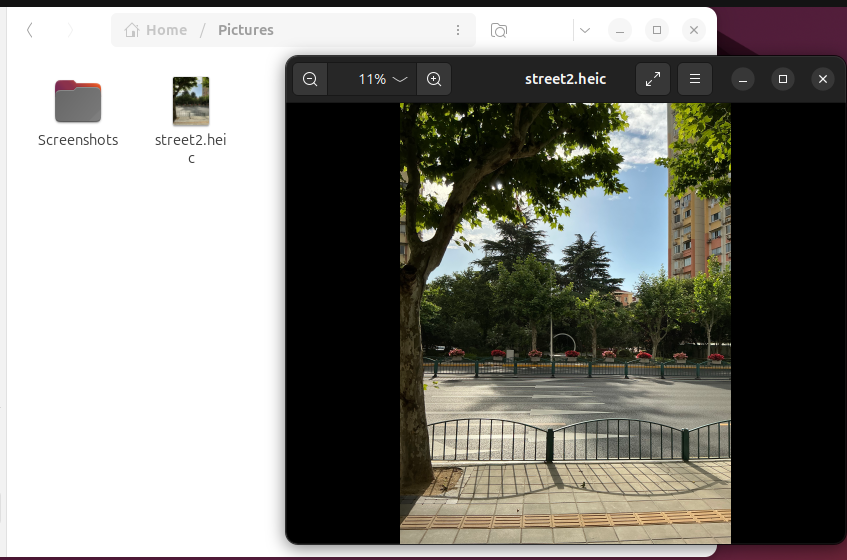
Most Linux distros don't open HEIC files out of the box, but modern desktop environments like GNOME can display HEIC previews if the right packages are installed.
PixKeep Online (Recommended)
Same steps as described above.
libheif (heif-convert)
The most reliable command-line option. Install and convert:
- Ubuntu/Debian:
sudo apt install libheif-examples - Fedora:
sudo dnf install libheif-tools - Arch:
sudo pacman -S libheif
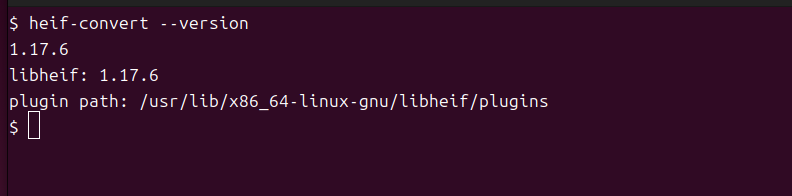
heif-convert --version to verify that libheif is installed correctly.Once installed, convert HEIC files using the command line:
heif-convert input.heic output.jpg

heif-convert input.heic output.jpg to quickly convert HEIC files from the terminal.For batch conversion of all HEIC files in a directory:
for f in *.heic; do heif-convert "$f" "${f%.heic}.jpg"; done
GIMP
GIMP 2.10+ can open HEIC files if you have libheif installed (usually included). Open the HEIC file, then File → Export As and choose JPG.
ImageMagick
ImageMagick 6.9.11+ supports HEIC if compiled with libheif. Convert with: convert input.heic output.jpg
How to Convert HEIC to JPG on iPhone
If you want your iPhone to shoot JPG directly:
- Open Settings
- Tap Camera
- Tap Formats
- Select Most Compatible (this switches to JPG)
Note: This will double your photo storage usage. We recommend keeping HEIC and converting only when needed.
How to Convert HEIC to JPG on Android
Android 9 (Pie) and later have built-in HEIC support for viewing, but conversion to JPG requires an extra step. Here are three ways:
PixKeep Online (Recommended)
Same steps as described above.
Google Photos
- Open Google Photos (pre-installed on most Android phones)
- Open the HEIC photo
- Tap Share → Save as JPG or use Edit → Export
Third-Party Apps
Search "HEIC to JPG" on Google Play. Look for apps with high ratings (4.3+) and check the privacy policy — many free apps upload your photos to their servers for conversion, defeating the purpose of a private converter.
Which Method Should You Choose?
| Method | Ease | Batch | Privacy | Cost | Best For |
|---|---|---|---|---|---|
| PixKeep Online | ⭐⭐⭐⭐⭐ | Up to 10 | ✅ Local | Free | Any device, quick & private |
| iPhone Settings | ⭐⭐⭐⭐⭐ | — | ✅ Local | Free | Prevent HEIC going forward |
| Mac Preview | ⭐⭐⭐⭐ | No | ✅ Local | Free | Mac users |
| Windows (HEVC) | ⭐⭐⭐ | No | ✅ Local | $0.99 | Windows users |
| CopyTrans HEIC | ⭐⭐⭐⭐ | Yes | ✅ Local | Free | Windows, bulk conversion |
| libheif (CLI) | ⭐⭐⭐ | Yes | ✅ Local | Free | Linux, batch via script |
| GIMP | ⭐⭐⭐ | No | ✅ Local | Free | Linux/Mac GUI users |
| Android Apps | ⭐⭐⭐ | Varies | ⚠️ Varies | Free–$2 | Android users |
Browser-Based vs Server-Side Conversion
Not all online converters work the same way. Most upload your photos to a server for processing — convenient, but worth being aware of if you're converting personal photos (family, documents, medical records).
Our converter takes a different approach: all processing happens directly in your browser using client-side JavaScript. Your files never leave your device — you can even disconnect from the internet after the page loads and it still works. If keeping your photos local matters to you, look for converters that explicitly state "no uploads" or "processes locally."
Frequently Asked Questions
Does converting HEIC to JPG reduce quality?
Minimal quality loss occurs during conversion. Our tool uses 92% quality setting, which is visually indistinguishable from the original for most users.
Can I convert HEIC to PNG instead?
Yes! Use our free HEIC to PNG converter when you need maximum quality or transparency. PNG files are much larger than JPG though — if file size matters more, try HEIC to JPG or HEIC to PDF.
Why do some HEIC files fail to convert?
Very large HEIC files (>50MB) or those with advanced features (Live Photos, depth data) may cause issues. For standard iPhone photos, conversion works reliably.
Conclusion
HEIC is a great format for saving space on your iPhone, but JPG remains the universal standard for compatibility. Whether you use an online converter, change your iPhone settings, or use built-in tools on Windows, Mac, or Linux, converting HEIC to JPG is straightforward.
For quick, private, and batch conversion, try our free HEIC to JPG converter - no uploads required.